Copy Running-Config Startup-Config: The Definitive Guide
Learn what 'copy running-config startup-config' does on Cisco IOS, why it's critical, and how to use it safely. Avoid common pitfalls and save your work.
You usually learn the importance of saving a Cisco device the hard way.
A change window runs long. You fix the VLAN issue, clean up the trunk, update the hostname, verify the uplink, and finally watch users come back online. Then the switch reloads after a power event or maintenance mistake, and the box returns with yesterday's configuration. Your “finished” work was only living memory.
That's why Copy Running-Config Startup-Config matters. It isn't just a basic Cisco command you memorize for exams. It's the difference between a live change and a persistent change. For teams responsible for branch routers, access switches, or essential IT networking for Philippine businesses, that distinction is operational, not academic.
Why "Copy Run Start" Is a Network Engineer's Lifeline
The ugly version of this story usually happens late at night.
An admin logs into a core switch, applies a series of changes, checks that the interfaces look healthy, and moves on. The network is stable. The ticket is ready to close. Then the device reboots, and everything reverts because nobody saved the running configuration.
That failure is so common because Cisco devices let you make live changes immediately. The CLI accepts the command, the behavior changes, and the network responds right away. That creates a false sense of completion. The work feels done because the result is visible.
It isn't done until it survives a reboot.
The command that turns work into state
Cisco IOS popularized Copy Running-Config Startup-Config as the command pattern used to preserve a device's live configuration across reboots. In Cisco terminology, the running configuration is stored in RAM, while the startup configuration is stored in NVRAM, and copying one to the other makes the current state persistent after power loss or restart, as described in this Cisco configuration persistence overview.
That sounds simple, but the key lesson is operational discipline.
If you manage enough switches and routers, you eventually stop thinking of this as a “save command” and start thinking of it as a control point. It's the moment you decide the current device state is safe to keep. Until then, your changes are still provisional, even if users are happily passing traffic.
Practical rule: If you haven't verified the running state, don't save it just because the command is in your muscle memory.
Why engineers keep this command close
A junior admin often treats this command as the last line in every session. A senior admin treats it more carefully.
That's because saving too late is risky, but saving too early is also risky. If the running configuration contains a temporary workaround, a typo that hasn't broken anything yet, or a test stanza you meant to remove, saving it makes that mistake durable.
That's why this command is a lifeline. It protects you from losing good work, but it also forces you to decide whether the current state deserves to become the boot state.
Understanding Volatile RAM and Persistent NVRAM
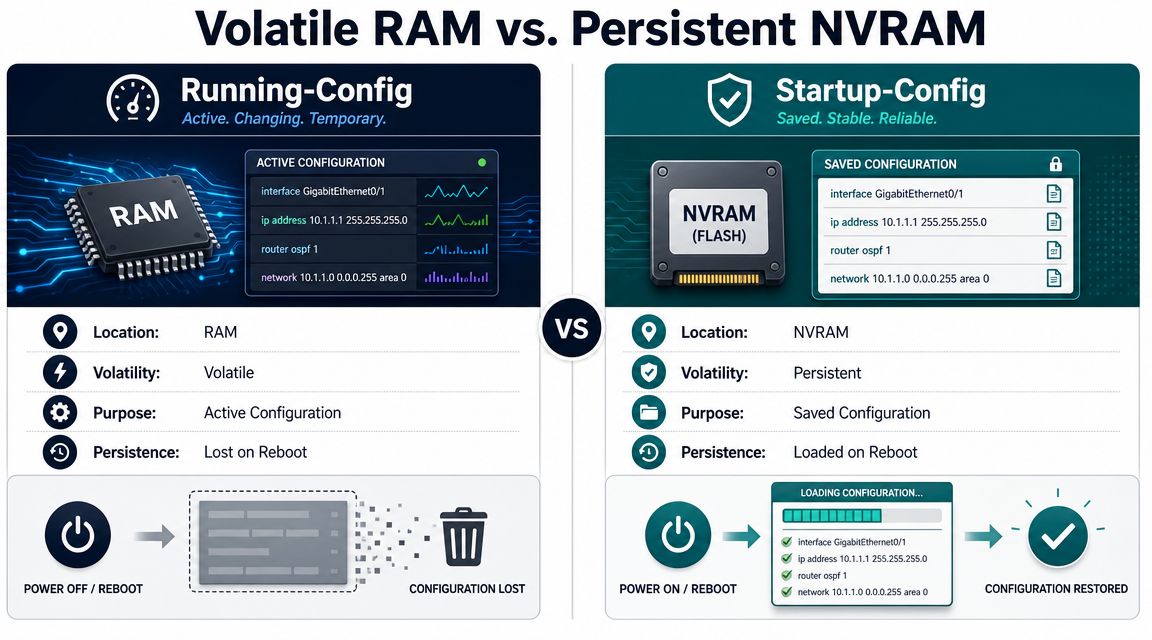
The copy running-config startup-config command exists because Cisco devices keep the live configuration separate from the saved boot configuration. If you do not keep that distinction straight, troubleshooting gets messy fast, especially after a reload during a maintenance window.
What lives where
On Cisco IOS, the running-config lives in RAM. It is the active state of the device, and changes take effect as soon as you enter them. The startup-config lives in NVRAM. That is the configuration the device reads at boot.
The distinction sounds basic, but it drives a lot of real-world mistakes. A switch can be forwarding traffic exactly the way you want right now, while the saved configuration is still old, incomplete, or wrong. Then the box reloads and comes back with yesterday's settings. Junior admins often call that a failed save. In practice, it is usually a failed verification process.
For day-to-day operations, keep this model in mind:
| Configuration state | Where it lives | What it means |
|---|---|---|
| Running-config | RAM | What the device is doing now |
| Startup-config | NVRAM | What the device will do after reboot |
That table is simple, but the operational trade-off is where teams get into trouble. Saving protects valid work from power loss, supervisor failover, or a planned reboot. Saving also preserves temporary ACL entries, test routes, half-finished interface changes, and emergency fixes that were never meant to survive. The command is safe only after the current state has been checked.
Saving config does not validate config. It only makes the current state persistent.
Why engineers care during troubleshooting
When a device comes back from a reload missing VLANs, route changes, or management access settings, start by comparing what was running versus what was saved. That check is often faster than chasing syntax or blaming the platform.
This is also where automation needs guardrails. A script that pushes changes and immediately saves them can turn a minor mistake into the new baseline on dozens of devices. Good workflows separate three steps: apply, verify, then save. Teams looking for field-ready Cisco switch guidance should build that sequence into both manual changes and automation jobs.
A practical habit helps here. Before saving, ask one question: if this device reloads in five minutes, do I want it to come back exactly like this? If the answer is not clear, stop and verify first.
Executing the Save Command on Cisco IOS Devices
On Cisco IOS and IOS XE, the correct way to persist changes is to copy the live running configuration into NVRAM with Copy Running-Config Startup-Config. Cisco's configuration guide notes that the copy operation is loaded as if it were typed at the CLI, so it applies as a command-by-command merge, as documented in Cisco's configuration management guide for IOS and IOS XE.
That matters because this isn't magic. The device is processing configuration lines, not freezing the universe.
Basic CLI workflow
A clean save sequence on a Cisco device looks like this:
Switch> enable
Switch# configure terminal
Switch(config)# hostname Access-SW-01
Access-SW-01(config)# end
Access-SW-01# copy running-config startup-config
Destination filename [startup-config]?
Building configuration...
[OK]
Access-SW-01#
Most engineers shorten it to this:
Access-SW-01# copy run start
Destination filename [startup-config]?
Building configuration...
[OK]
The abbreviated command is common and fine in day-to-day work. The full command is better for training, documentation, and change records because it leaves less room for ambiguity.
What to expect at the prompt
The prompt catches people more often than the command itself:
Destination filename [startup-config]?
In normal IOS workflows, pressing Enter accepts the default destination. That's usually all you need. But don't treat that prompt as decorative. It's still an interactive step, and automation can fail if it doesn't answer it properly.
A practical sequence looks like this:
- Enter privileged EXEC mode with
enable. - Finish and verify your configuration changes.
- Run
copy running-config startup-configorcopy run start. - Accept the default filename if prompted.
- Confirm the saved state afterward.
What works well in real operations
Some habits make this safer:
- Use the full command during handoffs: It's easier for a junior admin to read and harder to misinterpret in screenshots or runbooks.
- Save only after validation: Check the interface state, routing behavior, and the exact stanza you changed before writing to startup.
- Keep your references practical: If you want a quick refresher on adjacent commands, this field-ready Cisco switch guidance is useful because it stays close to day-to-day CLI work.
For multi-vendor teams, the broader lesson is that vendors differ in how they persist configuration. Cisco uses copy semantics here. Other platforms may use different workflows entirely. Don't assume “working now” means “saved for boot” unless you know the platform's persistence model.
How to Confirm Your Changes Are Permanent
A successful-looking save isn't the same as a verified save.
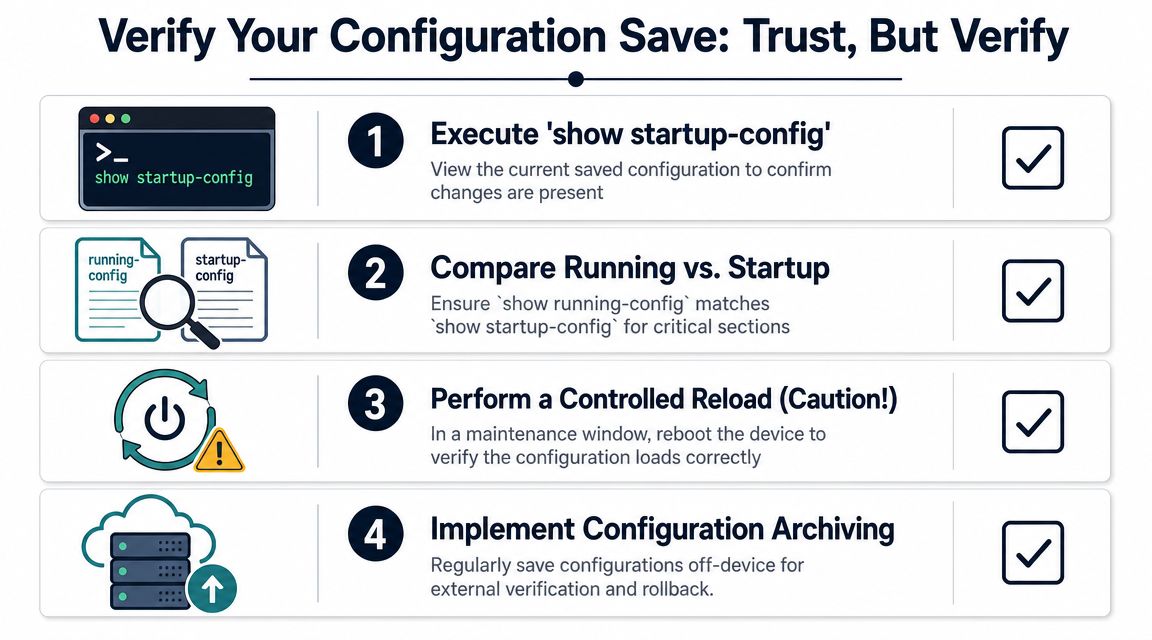
You need proof that the configuration you want is present in startup-config, ready to survive the next reload. The simplest way is to inspect what the device has in NVRAM and compare it to what you intended.
The first check to run
Start with the saved configuration itself:
show startup-config
Don't just run the command and move on. Look for the exact section you changed. If you updated a hostname, check the hostname line. If you changed an interface, inspect that interface block. If you modified an access list, verify the relevant entries are present in startup-config.
That's your primary confirmation.
A professional verification routine
Good operators don't stop at one check. Use a short routine:
- Inspect startup-config: Confirm the expected lines exist in the saved config.
- Compare critical sections: Look at the relevant area in both running-config and startup-config to make sure they align.
- Check write recency: If your platform exposes a useful timestamp or file detail, use it as secondary confirmation that the save occurred.
Trust the command output less than the resulting state.
For teams that train junior staff, it also helps to show the process visually. This walkthrough video is a useful companion for basic save and verification behavior:
The only definitive test
There's one check that beats all others. Reload the device during a maintenance window and confirm it returns with the expected configuration.
You obviously don't do that casually on production infrastructure. But for high-impact changes, a controlled reload is the only end-to-end proof that the device will boot into the state you intended. Everything else is evidence. A reload is confirmation.
Common Pitfalls and Automation Gotchas
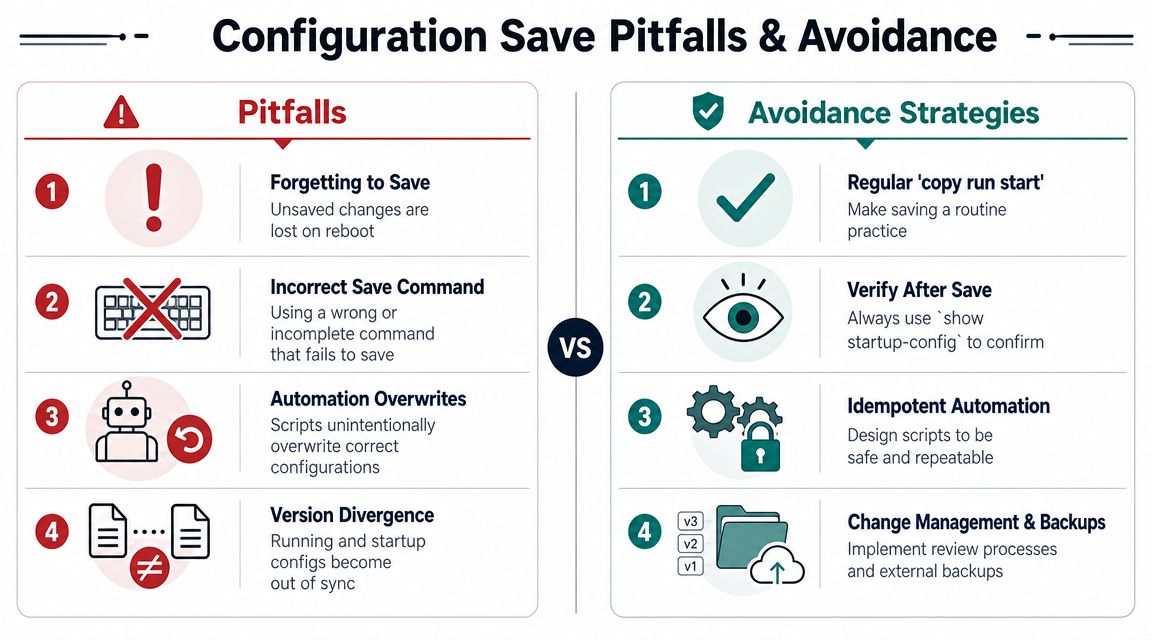
The command is basic. The failures around it aren't.
Most real-world trouble shows up when admins wrap a simple interactive command inside automation and assume the device will behave like a non-interactive API. Cisco often doesn't.
The prompt that breaks unattended jobs
A common failure pattern is sending copy run start from a tool and then never answering the follow-up prompt. In a troubleshooting example from the ManageEngine community, an administrator hit exactly this problem, and another practitioner advised appending blank line feeds (${CRLF}) to simulate the needed Enter keystrokes. The same discussion highlights a useful operational check: verify success by confirming the startup configuration timestamp updates in this community troubleshooting thread on interactive save prompts.
This is the part many scripts get wrong. They send the command but not the interaction needed to complete it.
What automation should do instead
If you automate configuration saves, build for device behavior, not wishful thinking.
- Detect prompts deliberately: Some platforms or software versions prompt for destination filename or confirmation. Your job runner has to expect that.
- Pre-stage newline responses: If the target needs an Enter keypress, send it explicitly. Don't assume the library or platform will do it for you.
- Verify the result after execution: Check startup-config, or at minimum verify that the saved state changed in a way your platform exposes.
A lot of “successful” network automation is only successful because nobody tested it against a reboot.
Human mistakes are still the bigger risk
Automation errors get attention because they're dramatic, but the oldest mistake is still the most common. An admin fixes a problem under pressure, leaves temporary lines in place, then saves out of habit.
That creates a delayed outage. Nothing fails now. The next reboot fails later.
Save commands should follow verification, not relief.
Another failure mode is version divergence. The running configuration drifts during emergency work, the startup configuration remains older, and nobody notices because the device hasn't restarted in a while. Then a reload turns a hidden mismatch into an incident.
The command itself isn't dangerous. Blindly using it is.
Beyond "Copy Run Start" Advanced Safety and Rollback Methods
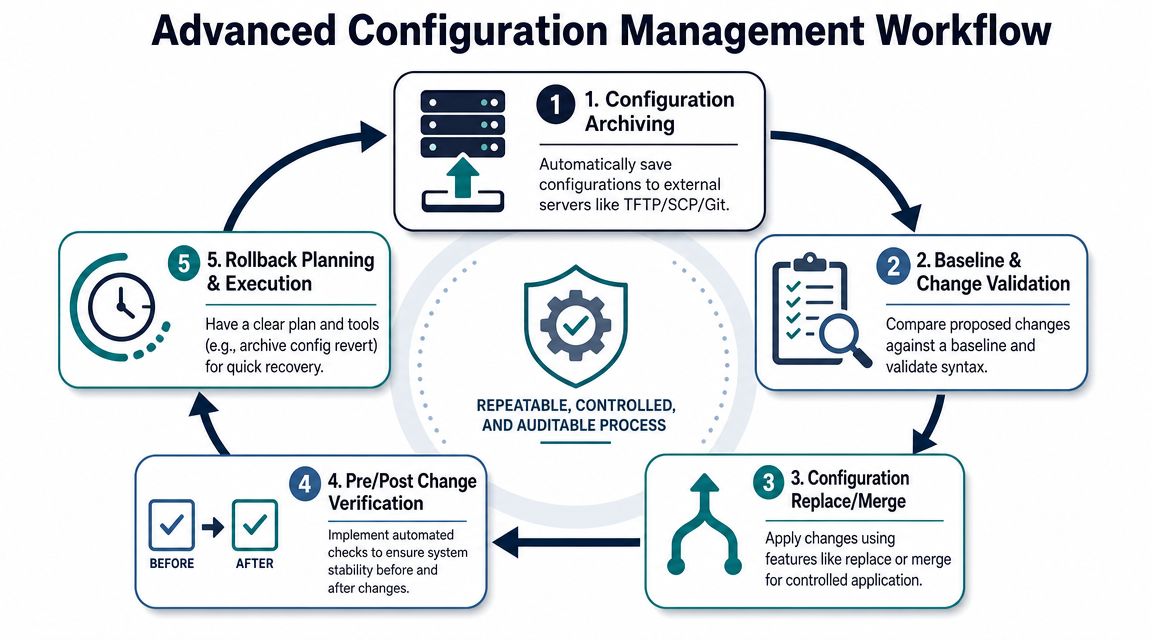
A switch has been stable for hours after an emergency fix. Traffic is flowing again, everyone is relieved, and one last command would make the change survive a reboot. That is the exact moment to slow down. Saving too early can turn a temporary workaround into the new baseline.
Copy Running-Config Startup-Config writes whatever is live into persistent storage. That is fine for low-risk changes. On core devices, WAN edges, firewalls, or anything touched during an outage, the bigger question is whether the running state is the state you want to keep. Saving is an approval step, not a cleanup step.
Better habits before you save
For routine access-layer work, a direct save is usually reasonable. For changes with outage potential, add controls that let you recover cleanly if the live state is wrong.
- Diff before writing: Compare running-config and startup-config so you know exactly which lines are about to become permanent.
- Keep backups off the device: Store known-good configs externally. A device should not be the only place that holds its own recovery data.
- Build rollback into the change plan: Every significant change window should include a way back. This guide to IT disaster recovery is useful context because config persistence is only one part of restoring service safely.
- Label temporary fixes clearly: During incidents, engineers add test routes, permissive ACL entries, or shutdown workarounds. If a line is temporary, mark it in your notes before anyone reaches for a save command.
Why configure replace belongs in your toolkit
configure replace gives you a different operating model. Instead of preserving whatever happens to be running, you push the device back toward a known-good configuration file. That matters because rollback is not only about adding missing lines. It often requires removing lines that should never have been left behind.
I have seen plenty of outages extended by a saved workaround that made sense for ten minutes and caused trouble for the next reboot. A plain save accepts the current state as truth. A replace workflow checks the current state against an approved target and corrects drift in both directions.
That is safer for automation too. A job that blindly saves after making edits can preserve partial changes, leftover test commands, or operator mistakes. A job that validates a candidate config, archives the prior state, and uses configure replace or an equivalent rollback method gives you a controlled recovery path if the result is wrong.
SigOS helps product and revenue teams find the patterns that matter in noisy operational data. If your team wants a clearer way to prioritize issues from support tickets, conversations, and usage signals, take a look at SigOS.
Keep Reading
More insights from our blog



Ready to find your hidden revenue leaks?
Start analyzing your customer feedback and discover insights that drive revenue.
Start Free Trial →